
Looking for a simple way to make your Squarespace website stand out?
Elevate your website design with a gradient background.
Adding a gradient background is an easy way to add depth, texture, and personality to your site. (And there’s NO coding needed!)
Instead of a flat block of color, gradients create a smooth transition between two shades. They’re one of those simple but impactful design tricks that can take your website from 🙂 to 🤩🤩🤩
In this short tutorial, I’ll walk you step-by-step through adding a custom gradient background to your Squarespace site, plus share my favorite design settings and give you a couple pro tips to make it look seamless.

Wondering what a gradient background looks like on a website?
Below is an example of what we’ll be creating. This is the gradient I used in my video tutorial, so watch that here if you want to see how I did it!

Designer Pro Tips
Gradients work best for one long section, or split across 2–3 stacked sections
To make your gradient look seamless, choose colors that are fairly close on the color wheel (think deep blue into teal, or peach into soft pink)
If you want to use colors that are in different color families, you’ll need multiple sections to span the gradient across. (See my video tutorial for more on this!)
Use Coolors.co to experiment with gradient color combos before applying them to your site
Use the Eyedropper Chrome extension to sample colors from a webpage
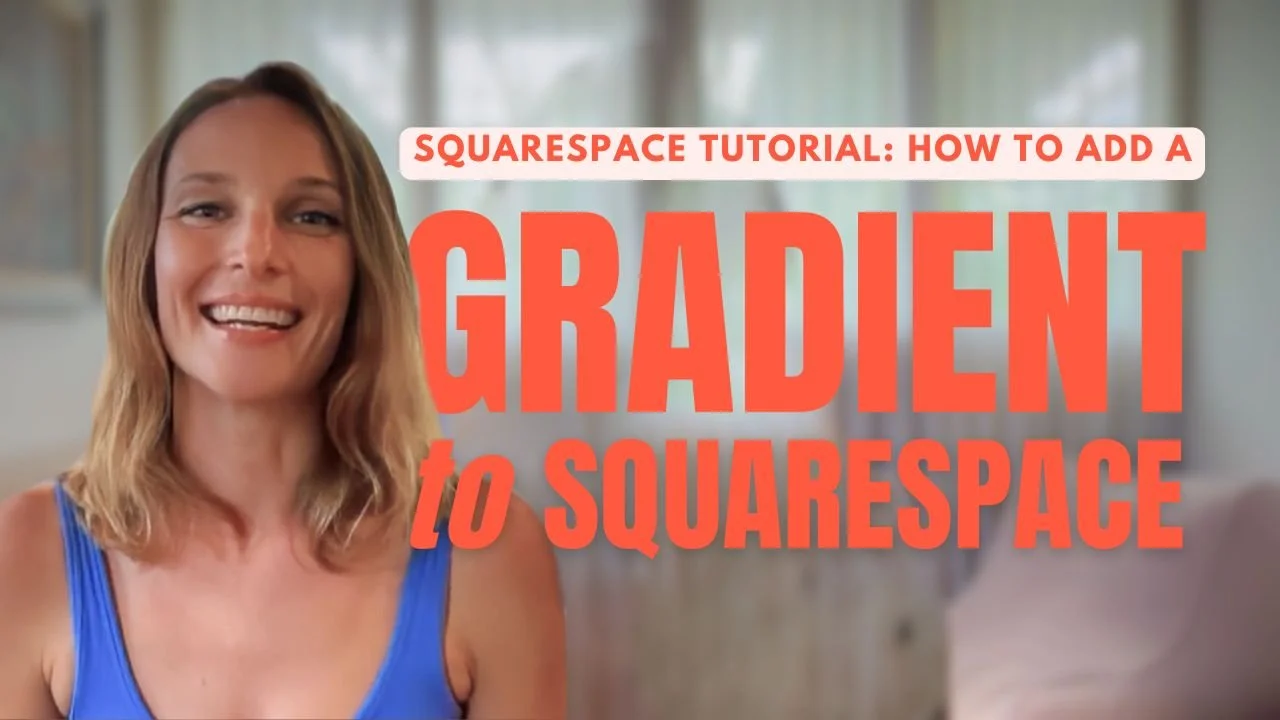
WATCH THE VIDEO TUTORIAL HERE ↑ OR KEEP READING FOR THE TEXT VERSION ↓How to Add a Gradient Background in Squarespace
Here are 7 steps to adding a gradient background to your Squarespace website.
01. Edit the section background
Hover over the section you’d like to edit and click Edit Section > Background > Art
02. Select the Gradient option
In the right-hand column, choose Gradient (it’s the fourth option down)
03. Open Gradient Settings
Click the Settings icon to customize your gradient
04. Choose your Start color
Select from your brand palette, or enter a custom hex code. (Hex codes are 6-digit color codes that start with #. Ex. #FFFFFF for white.)
05. Choose your End color
Pick a complementary shade. If the transition looks too harsh, try a color closer to your Start shade.
06. Adjust Shape and Size settings
Here’s what I use to create a simple top-down gradient:
Start position: -100
End position: 100
Angle: 90
07. Smooth out the Texture settings
Set all Texture sliders to 0 for a clean, smooth look. (Feel free to play around here to find what you like best!)
How easy was that?! Adding a gradient background in Squarespace is just one of many ways to make your site feel more alive and stand out.
I’d love to see what you create!
Drop a link in the comments below to share the website gradient you created :)
Ready to expand your brand?
Here are a few ways I can support you…
✺ The Aligned Brand Method: Self-Guided Branding Build a brand that works for you 24/7 with the foundational branding process behind my client work, at your own pace. Get Instant Access →
✺ 1:1 Creative Catalyst Feeling stuck, scattered, or on the verge of something? This focused one-on-one session gives you clear, direct support to reach your brand + business goals. Book Your Session →
✺ Brand Alchemy: Full-Service Branding + Website Design A transformative, immersive experience to align, design, and expand your brand that includes brand strategy, logo & identity design, and a custom website. (Only 4 seats per year.) Explore Services →
NOT SURE WHERE TO START?EXPLORE MORE




Looking for a simple way to make your Squarespace website stand out?
Elevate your website design with a gradient background.
Adding a gradient background is an easy way to add depth, texture, and personality to your site. (And there’s NO coding needed!)
Instead of a flat block of color, gradients create a smooth transition between two shades. They’re one of those simple but impactful design tricks that can take your website from 🙂 to 🤩🤩🤩
In this short tutorial, I’ll walk you step-by-step through adding a custom gradient background to your Squarespace site, plus share my favorite design settings and give you a couple pro tips to make it look seamless.